GETTING STARTED
Onboarding & Setup Guide
Get BNBFi running in your browser in under two minutes with these quick steps.
01
Installation
Install and Pin the Extension
Download the extension directly from the Chrome Web Store:
- Click "Install Free" in the top-right → click "Add to Chrome".
- In Chrome, click the Puzzle Piece icon.
- Find BNBFi and click the Pin icon to keep it visible on your toolbar.
- Click the BNBFi toolbar icon to toggle Chrome's native Side Panel interface.
Available for Chrome, Brave, and Edge
02
Setup OS
Configure Rental Profiles
Add your properties to create separate transaction streams:
- Go to the Properties Setup section inside the extension.
- Click Add Property.
- Input property nicknames (e.g. "Beach Condo Unit A", "Cabin Retreat").
- Define optional monthly fixed costs (insurance, mortgages) to automate net margin calculations.
Tip: Track up to 10 distinct properties in one dashboard.
03
Income & Expense
Import CSV or Log Transactions
Log payouts, platform fees, repairs, utility payments, and restock supplies:
- 1-Click CSV Upload: Download your official transaction history from your Airbnb Host account. Drag and drop it into the **CSV Import** tab. The extension automatically maps, imports, and charts all data.
- Manual Entry: Click the **+ Income** or **+ Expense** tabs, choose the property, enter details (amount, category, date), flag it as tax-deductible if applicable, and click Save.
04
Goals Tracking
Define Annual Profit Goals
Set custom targets to gamify your short-term rental business:
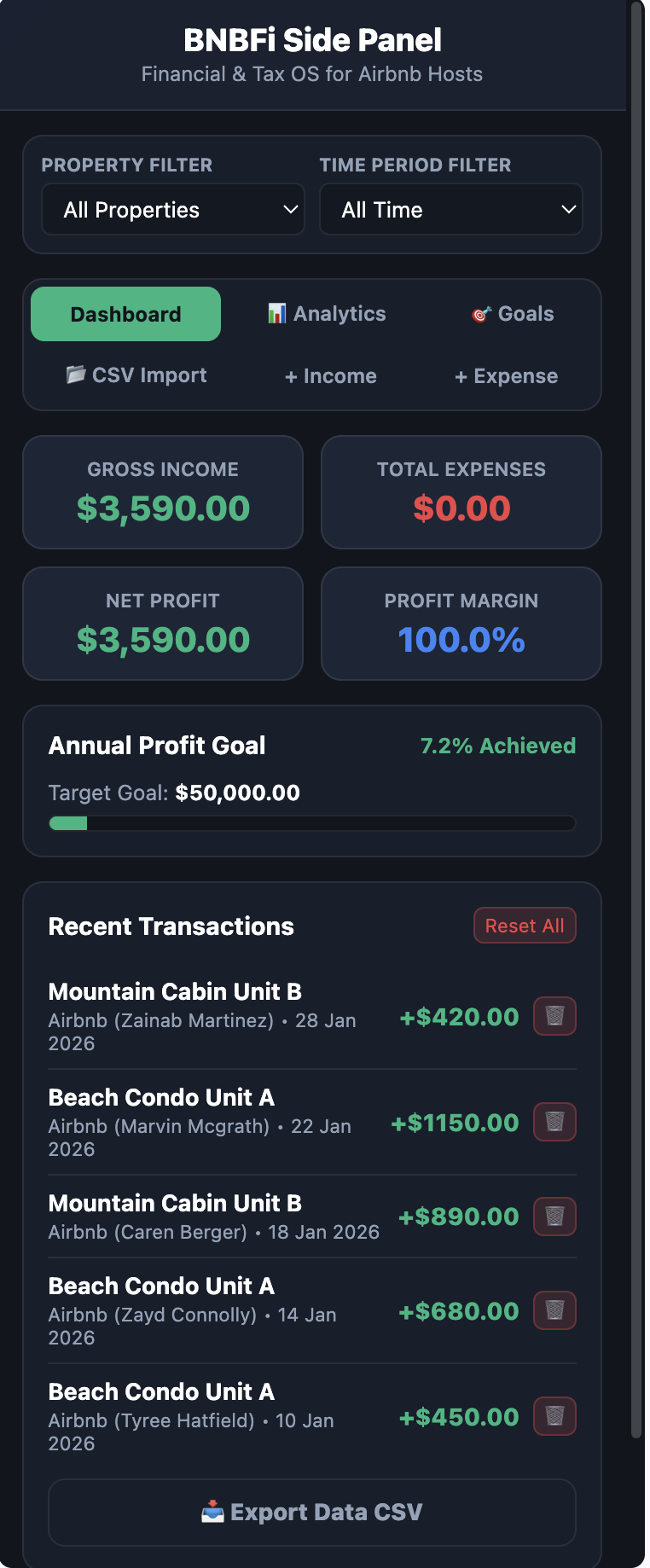
Under the **Goals** tab, input your target annual net profit goal (e.g. $50,000).
Watch the dashboard progress bar update in real-time as your payouts are logged. Keep an eye on your net margins automatically!
Gamified progress tracking active
Privacy Policy
Last Updated: July 23, 2026
This Privacy Policy describes how the BNBFi Chrome Extension ("the Extension"), published by Labonni LLC ("we", "us", "our"), handles user data. We are committed to protecting your privacy and ensuring that your interaction with the Extension remains secure and private.
1. No Server-Side Data Collection
The Extension operates as a purely client-side tool. We do not run any remote user databases, and we do not collect, harvest, store, or transmit any personally identifiable information, financial details, browsing history, or user activities to our own servers.
2. Secure Local Storage
All settings, configurations, income logs, expense logs, property setup details, and time filters entered into the Extension are stored 100% locally on your device via Chrome's secure local storage (chrome.storage.local). This data remains on your browser and is never uploaded to our servers or shared with any third parties.
3. Browser Permissions
The Extension requests the following browser permissions solely for essential functionality:
storage: Required to save your property metrics, financial logs, and settings locally on your browser.sidePanel: Required to render the BNBFi financial dashboard inside Chrome's side panel interface.
4. Third-Party Services
BNBFi does not integrate third-party trackers, analytics scripts, or advertising SDKs within the extension. All data parsing, such as CSV import from Airbnb exports, is processed entirely locally on your device in JavaScript, and no CSV files or records are sent over the network.
5. Data Security
Since your financial records and configuration settings are stored in your browser's local sandbox, the security of your data depends on the security of your device. We recommend keeping your operating system and web browser up-to-date and using standard security measures to protect your local environment.
6. Data Retention and Deletion
All stored configurations and logs remain on your device until you choose to delete them. You can delete all saved settings and data at any time by uninstalling the Extension or clearing the Extension's local storage through Chrome's developer tools.
7. Contact Us
If you have any questions or concerns regarding this Privacy Policy, please contact us at info@labonni.com.